Library









|
||||
|
PRINTING TIPS
• Works
best if you save the Front and Back files or Combined Image
File onto your computer’s hard drive. (although this is not required.) • Open the downloaded files with Free Adobe Reader and print from there as this makes it possible to control the important variables below in the printing process. This process will also retain font specifications which can become distorted when printing straight from your browser.
• Works best if you use a printer that prints on both sides of a single sheet.
Select : “Flip on Short Edge”
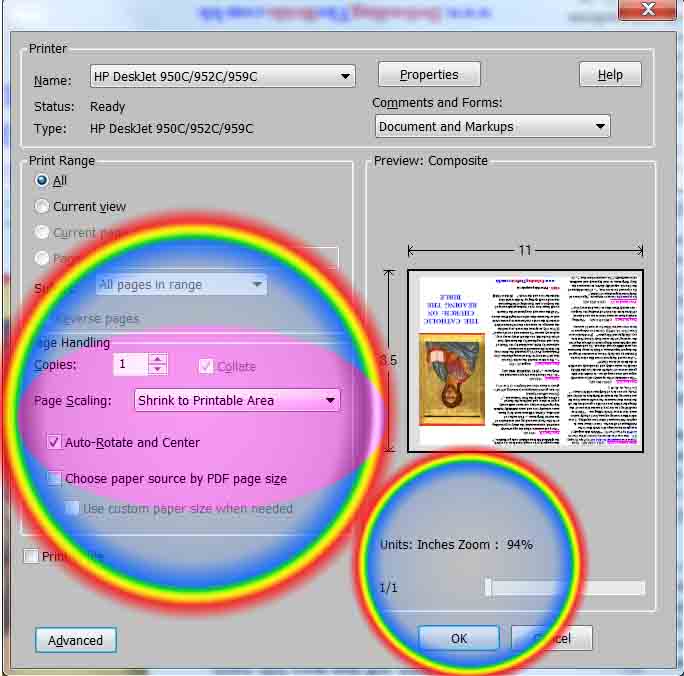
Otherwise, consider printing the second side by feeding the printer ONE page at a time to prevent pages from sticking together and ruining them all. • Some printers will automatically shrink this page to 94% of the original size which is ideal for good margins.
Print PDF files in Landscape mode, NOT Portrait. Use Heavier paper as this eliminates two or more pages going into the printer at same time and wasting ink. I prefer 28 LB paper as this makes for a sturdy pamphlet.
How to Save Files :
|
||||
|
||||
|
|
||||
| However, If you insist on doing it the hard way, and Not downloading the images to your hard drive, and if instead you wish to print from your browser window, see page below on how to work around some difficulties that may develop. |
||||
|
|
||||
|

|
|